 Just Freakin’ Do It!All tools
Help › Image editor
Image editor guide
How to compress, resize and convert pictures, remove backgrounds, turn logos into SVG and work on hundreds of pictures at once, all in your browser without uploading anything.
Quick start
- Open your pictures. Drop them onto the page, click Choose pictures, or paste one with Ctrl+V (⌘+V on a Mac). You can also start from a task, such as Compress images or Remove background, which sets things up for you.
- Choose your settings on the right. They apply to every picture you've opened.
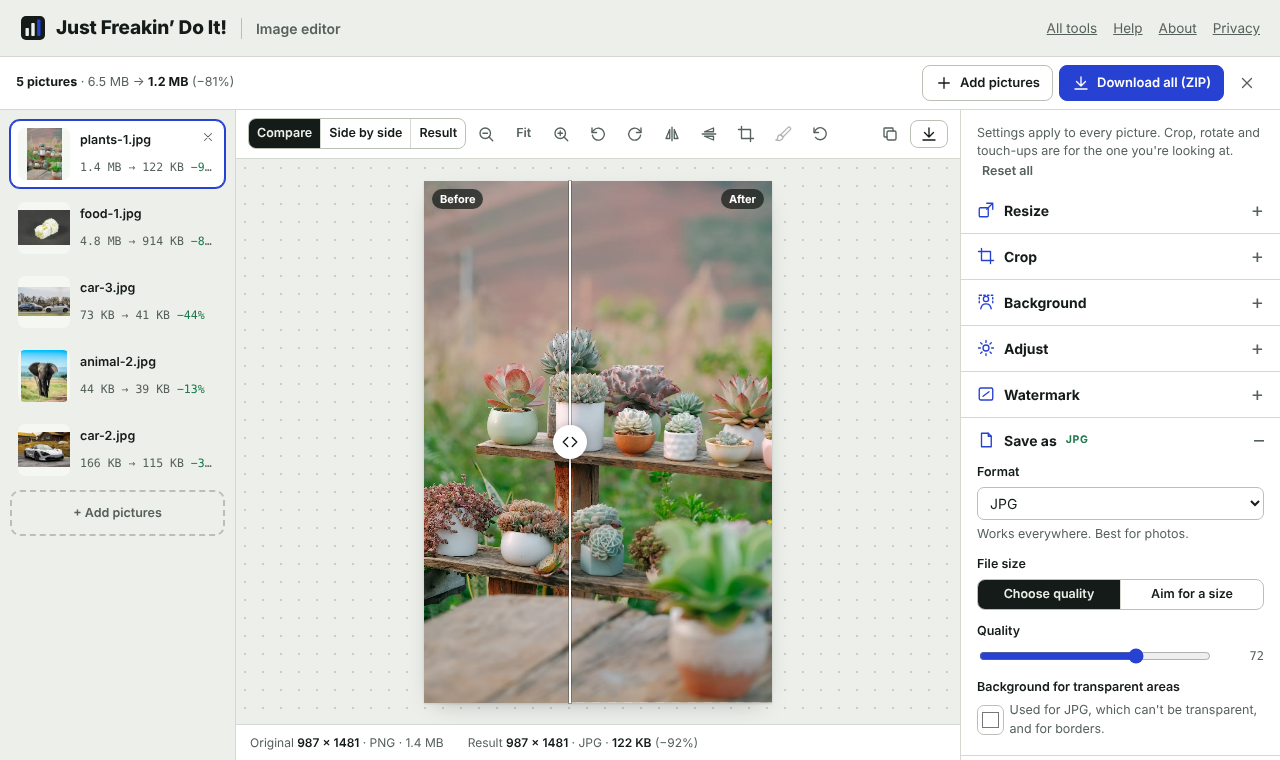
- Check the preview. Drag the line across the picture to compare before and after. The list on the left shows each file's new size.
- Download. Download all (ZIP) saves every picture in one file; This one saves just the picture you're looking at.
Opening pictures
The editor opens JPG, PNG, WebP, AVIF, GIF, BMP, SVG, ICO and iPhone HEIC photos (animated GIFs keep their first frame). Safari can also open TIFF files. Open as many as you like at once: one picture or several hundred.
- No size limits. There's no cap on file size or the number of pictures. The only limit is your device: very large pictures (above about 16 megapixels on iPhones and iPads, and about 250 megapixels on computers) can be more than a browser can hold, and the editor will tell you if that happens.
- Photos come out the right way up. Phones often save photos sideways with a note saying which way to turn them. The editor turns the picture itself, so it looks right everywhere.
- HEIC photos open in every browser. Safari reads them directly; other browsers use a built-in decoder, which takes a few seconds for a large photo.
- To add more pictures later, use Add pictures or drop them onto the page. To remove one, hover over it in the list and click the ×, or select it and press Delete.
The preview
The middle of the screen shows the picture you've selected in the list.
- Compare shows the original on the left and the result on the right. Drag the line (or focus it and use the arrow keys) to see more of either.
- Side by side shows them next to each other. The editor switches to this automatically when the result has a different shape, for example after a crop.
- Result shows only the result. Transparent areas show as a grey checkerboard.
- Zoom: use the magnifying glass buttons, or click Fit to switch between fitting the window and 100%. At 100% and above you see the real pixels, which is the best way to judge compression.
The line under the preview shows the original and new size in pixels and bytes, the camera that took the photo, and notes about anything the editor did for you, such as changing the format to keep a transparent background.
Compressing
Under Save as, choose how small to make each file.
Choose quality
For JPG, WebP and AVIF, the Quality slider trades file size against detail. 82, the starting point, is hard to tell from the original. 70 to 80 suits websites and email; below 60, edges start to look blocky. Zoom to 100% to check.
Aim for a size
Type a size such as 200 KB and every picture is saved as close to it as possible without going over. The editor finds the best quality that fits. If even the lowest quality is too big, it makes the picture smaller (in pixels) until it fits, and says so under the preview. This is useful for upload forms with a size limit.
Smaller PNGs
PNG is lossless, so its quality can't be lowered. Instead, choose a number of Colours: 256 colours usually looks identical for screenshots, logos and graphics, and often makes the file 60 to 80% smaller. Smooth gradients (dithering) hides banding in shades. With Aim for a size, the editor reduces colours, then size, until the PNG fits.
Never bigger for nothing. If you haven't changed a picture and saving it again would make it bigger (some files are already well compressed), the editor keeps the original file instead, with its hidden details removed.
Resizing
Under Resize, choose how to set the size:
| Option | What it does |
|---|---|
| Exact width and height | Every picture ends up exactly this size. Choose what happens when its shape is different (below). |
| Width or Height | Sets one side; the other follows, so nothing is stretched. |
| Longest side | The longer side becomes this many pixels, whether the picture is landscape or portrait. Good for photo batches. |
| Percentage | Scales every picture by the same amount, from 5% to 400%. |
When an exact size has a different shape from the picture:
- Crop to fill fills the size exactly and trims the edges that don't fit, from the centre.
- Add borders fits the whole picture in and fills the rest with the background colour (under Save as).
- Fit inside keeps the whole picture, no bigger than the size. One side will be shorter.
- Stretch squashes or stretches it to the exact size.
Ready-made sizes include Instagram posts, portraits and stories, link previews, LinkedIn and X banners, YouTube thumbnails, HD and 4K screens, and common print sizes.
For print, switch the units to cm or in and set the Print resolution (300 DPI is standard for photos). The picture gets the right number of pixels and is tagged to print at that size.
Don't make small pictures bigger (on by default) leaves pictures that are already smaller than the size alone, because enlarging can't add detail.
Converting formats
Choose the format under Save as:
| Format | Best for |
|---|---|
| Same as the original | Keeping each file's type. HEIC becomes JPG; GIF, BMP and SVG become PNG. JPGs that end up with a transparent background become PNG. |
| JPG | Photos. Opens everywhere. Can't be transparent, so see-through areas get the background colour (white unless you change it). |
| PNG | Screenshots, logos, graphics and anything transparent. Lossless. |
| WebP | Websites. Smaller than JPG at the same quality and can be transparent. Works in all current browsers. |
| AVIF | The smallest files. Many browsers can open AVIF but not save it yet; the option is greyed out when yours can't. Older software may not open it. |
| SVG | Logos and drawings as sharp vector shapes. See PNG to SVG. |
| ICO | Website icons (favicon.ico). See Favicons. |
Common conversions: HEIC to JPG for iPhone photos, WebP to JPG for pictures saved from websites, PNG to JPG to shrink photos saved as PNG, and JPG to WebP for faster websites.
Crop, rotate and flip
To crop every picture to the same shape, choose it under Crop (square, 4:5, 16:9 and more). Pictures are cropped from the centre.
To crop one picture, click the crop button above it. Drag the box, or its corners, to choose the area; pick a shape from the list to keep it in proportion, then click Done. No crop uses the whole picture again. A picture with its own crop ignores the shared crop shape.
The rotate and flip buttons turn the picture you're looking at. The reset button (the curved arrow) undoes the crop, rotation and touch-ups on that picture.
Removing backgrounds
Under Background, choose Remove to cut out the main subject automatically: a person, pet, product or object. It works on every picture you've opened.
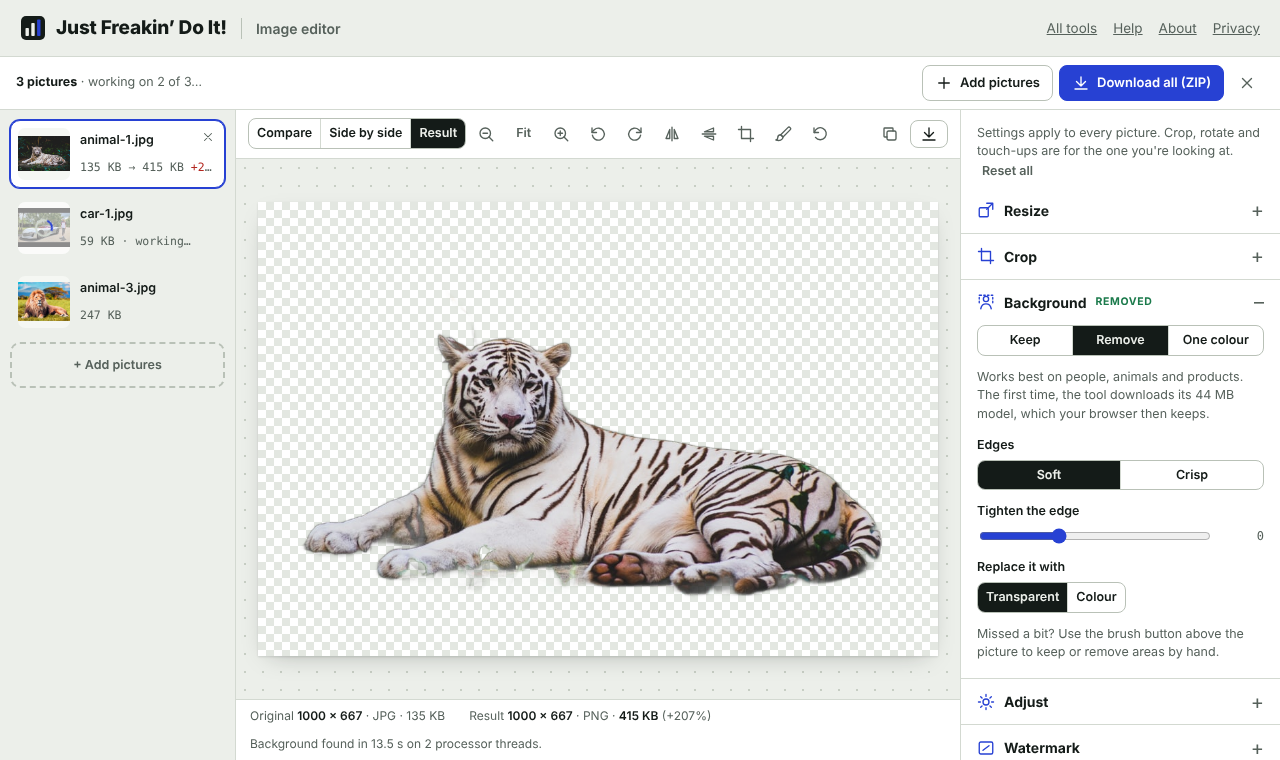
- It runs on your device. The editor uses an AI model (IS-Net) that runs in your browser. Your pictures are never uploaded. The first time, it downloads the 44 MB model, which your browser then keeps.
- Speed depends on your device. With a graphics card your browser can use (most current computers, and recent iPhones and Android phones), a picture takes a second or two. Otherwise it uses your processor, which takes from a few seconds to about a minute per picture, depending on the device. The line under the preview says which was used.
- Edges: Soft suits hair and fur; Crisp suits products and objects. Tighten the edge trims a thin halo; negative values keep a little more.
- Replace it with a transparent background (saved as PNG, or WebP if you choose) or a solid colour.
Remove one colour
For logos and product shots on a plain background, choose One colour. The colour is picked automatically from the picture's edges, or choose your own. How close a colour counts sets how similar a shade must be to be removed. Only where it touches the edges (on by default) removes the background but keeps the same colour inside the subject, such as the white of an eye.
Touching up by hand
Click the brush button above the picture. Removed areas show faintly so you can see them. Choose Remove and paint over anything that should go, or Keep and paint over anything that should stay. Change the brush Size as you go, use Undo stroke to take back the last one, and click Done when you've finished.
The model works best when the subject is clearly in front of the background. Busy scenes, glass and fine see-through things (veils, smoke) may need touching up.
PNG to SVG
Choose SVG (traced vector) under Save as to trace a picture into vector shapes that stay sharp at any size. It works best for logos, icons, signatures and drawings with flat colours.
- Colours sets how many colours the SVG uses. Choose the number of colours in your logo; Black and white suits line art and signatures.
- Detail: Simple drops small specks, Fine keeps tiny details.
- Smooth curves rounds off jagged edges from low-resolution pictures.
- Remove the background first (Background › One colour) to get a logo with no white box behind it.
Photos can be traced too, but become large, painterly files. Start from the largest, sharpest version of a logo you have.
Favicons
Choose ICO (website icon) to make a favicon.ico file. Tick the sizes to include: 16, 32 and 48 pixels cover browsers and Windows; add 256 for high-resolution Windows icons. Pictures that aren't square get transparent edges. Start from a square picture of at least 256 pixels for the sharpest result.
Adjusting colours
Under Adjust: Brightness, Contrast, Colour (saturation), Warmth, Sharpen and Black and white. Sharpening is applied after resizing, which helps pictures that have been made much smaller. Reset puts them all back.
Watermarks
Type text under Watermark (for example "© Your name"), and/or click Add a logo… (a PNG with a transparent background works best). Choose the Position, or Repeat across to tile it diagonally over the whole picture, plus the colour, Size (relative to the picture, so it looks the same on every picture) and Opacity.
File names and hidden details
File names follow a pattern. {name} is the original name, {n} a number (01, 02…), {w} and {h} the new size, and {date} today's date. For example {name}-{w}x{h} gives holiday-1920x1280.jpg. The right extension is added for you, and duplicate names in a ZIP get (2), (3) and so on.
Photos from phones and cameras carry hidden details: often the exact place they were taken, the date, and the camera. Remove location and camera details (on by default) takes them all out. Untick it to keep them; that only works when a JPG is saved as JPG. Even then, the small preview picture that cameras store inside a photo is removed, so it can't show anything you cropped out. The preview's info line tells you if a photo contains a location.
Print resolution (DPI) changes only the size a picture prints at, not its pixels. Most printers and design programs read it from JPG and PNG files.
Downloading
- Download all (ZIP) waits for every picture to finish, then saves them all in
images.zip. With one picture, it saves the picture itself. - This one saves the picture you're looking at.
- The copy button copies the result to paste into a document, email or chat.
Pictures that couldn't be done (a damaged file, say) are shown in red in the list and left out of the ZIP.
Keyboard and accessibility
Every control can be reached with Tab. In the list, use the arrow keys to move between pictures and Delete to remove one. The compare line moves with the arrow keys. Esc leaves the crop and brush tools. Every button has a tooltip on hover or keyboard focus.
Privacy
Pictures are opened, edited and saved in your browser and never uploaded, including when you remove a background. The editor remembers a few preferences (such as quality and file-name style) on this device, never your pictures. See the privacy page.
Troubleshooting
The file got bigger
That happens when a small, well-compressed file is converted to a format that holds more (JPG to PNG), or when a background is removed (transparency needs PNG or WebP). Try WebP, which keeps transparency in a much smaller file, or lower the quality. If nothing about the picture changed, the editor keeps the original instead.
Background removal is slow
Your browser is using the processor rather than a graphics card. It still works, just more slowly; leave the tab open and it will get through the batch. Chrome, Edge and Safari 26 or later use the graphics card on most devices.
The background removal missed a bit
Click the brush button above the picture and paint over it with Remove or Keep. For a plain background, One colour can be more precise.
"This picture is too big for your browser"
The picture has more pixels than your browser can hold in memory, which mostly happens on phones and tablets with panoramas or very large scans. Try it on a computer, or make it smaller with another app first.
My HEIC photo won't open
A few HEIC files (some HDR or burst photos) use features the decoder doesn't support. Open the photo in the Photos app and share or export it as JPG, or set the iPhone to Settings › Camera › Formats › Most Compatible.
Why can't I choose AVIF?
Your browser can open AVIF pictures but can't save them; saving AVIF is still new in browsers. WebP is the next smallest, and works everywhere.
Is there a limit on how many pictures I can do?
No. Do as many as you like, as often as you like, free and without watermarks.