 Just Freakin’ Do It!All tools
Help › File converter
File converter guide
How to convert spreadsheets, data, documents, ebooks, PDFs, video, audio and subtitles, one file or hundreds at once, all in your browser without uploading anything.
Quick start
- Add your files. Drop them onto the page or click Choose files. You can mix kinds: spreadsheets, documents, videos and subtitles can all go in together. The buttons under Popular conversions, such as CSV → Excel, open the file picker with that conversion already chosen.
- Choose what to convert to. The settings on the right have one section for each kind of file you've added, each with its own Convert to list. Settings apply to every file of that kind.
- Press Convert. Files are converted one after another. The list shows each file's progress, and a tick and the new size when it's done.
- Download. Download all (ZIP) saves everything in one ZIP file. The arrow next to a file, or Download above the preview, saves just that one.
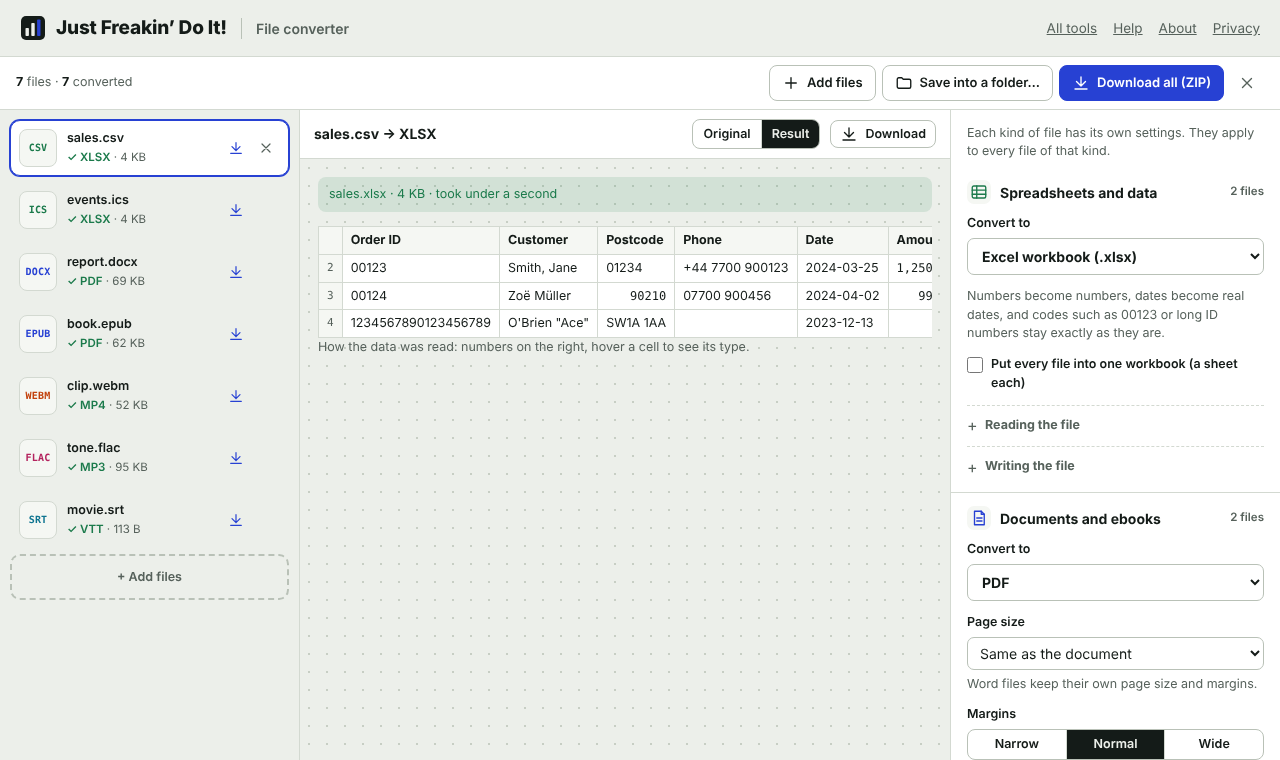
Change a setting after converting and the files of that kind are marked to convert again; press Convert once more. Nothing is uploaded at any point: the conversion happens on your device.
What it converts
| Kind | Opens | Converts to |
|---|---|---|
| Spreadsheets and data | CSV, TSV, Excel (XLSX, XLSM, XLS, XLSB), OpenDocument (ODS), Apple Numbers, JSON, JSON Lines, XML, YAML, vCard contacts, iCalendar | Excel, CSV, TSV, JSON, JSON Lines, YAML, XML, ODS, XLS, HTML table, Markdown table, SQL, PDF, vCard, iCalendar |
| Documents and ebooks | Word (DOCX), OpenDocument (ODT), RTF, EPUB, Markdown, HTML, plain text, PDF | PDF, Word, EPUB, web page (HTML), Markdown, plain text; from PDFs also JPG or PNG pictures of each page |
| Pictures | JPG, PNG, WebP, GIF, BMP, AVIF, SVG | PDF (one file each, or all in one) |
| Video | MP4, MOV, M4V, MKV, WebM, MPEG-TS | MP4, MOV, WebM, MKV, animated GIF, or just the sound as MP3, M4A, WAV, FLAC or OGG |
| Audio | MP3, WAV, FLAC, M4A, AAC, OGG, Opus, AIFF | MP3, M4A (AAC), WAV, FLAC, OGG (Opus), Opus, AIFF, AAC |
| Subtitles | SRT, WebVTT, ASS/SSA, SBV, TTML/DFXP, MicroDVD (.sub), LRC lyrics | SRT, WebVTT, ASS, SBV, TTML, LRC, a plain transcript, or a CSV spreadsheet |
For other picture conversions (HEIC to JPG, WebP to PNG, resizing, compressing) use the image editor. To edit, merge or compress PDFs, use the PDF toolkit.
A file's kind is worked out from what's inside it, not just its name, so a file with the wrong extension still converts correctly. Files the converter can't handle (old Word .doc, AVI or WMV videos, for example) are listed with a note saying why and what to use instead.
Spreadsheets and data
Most converters treat data as plain text and lose things along the way. This one reads what each value is and keeps it:
- Dates stay dates. In Excel files they become real dates you can sort and calculate with. Dates written like
03/04/2025are ambiguous; the converter looks at the whole column (a value like25/03can only be day-first) and uses your browser's language if it can't tell. You can set it yourself under Reading the file › Dates like 03/04/2025 mean. - Leading zeros stay. Codes such as
00123, phone numbers and postcodes stay exactly as written, and long ID or account numbers aren't rounded, which Excel does to anything longer than 15 digits. - Numbers become numbers, including
1,250.50,12.5%and£9.99, and keep their look in Excel (thousands separators, percentages, currency). - European files work. Semicolon separators and decimal commas (
1.234,56) are detected automatically, as are files from older Windows programs that aren't in UTF-8 (soJosédoesn't turn intoJosé).
Excel to CSV
Each sheet becomes its own CSV file (or choose Sheets › First only). Numbers come out as they look in the spreadsheet, as Excel's own Save as CSV does; choose Full precision under Reading the file to get every decimal place instead. Dates come out as 2025-03-31, which every program reads the same way. Hidden sheets are skipped unless you tick Include hidden sheets.
CSV files are Excel-friendly by default: they include a marker that tells Excel they're UTF-8, so accents and symbols open correctly. Choose a semicolon separator if your Excel uses commas as the decimal mark (much of Europe). Protect against formulas stops values starting with =, +, - or @ being run as formulas when the file is opened.
CSV and JSON to Excel
The workbook gets a bold heading row that stays put as you scroll, filter buttons, and columns sized to fit. Tables longer than Excel's limit of 1,048,576 rows continue on extra sheets rather than being cut off. To put many CSV files into a single workbook, tick Put every file into one workbook: each file becomes a sheet.
JSON, XML and YAML
Nested data is spread into columns named by its path, such as address.city, and lists of simple values are joined with semicolons. Going the other way, Turn columns like address.city into nested objects rebuilds the nesting. Between JSON, XML and YAML, Keep the nested structure converts the data as it is rather than as a table. In XML, attributes appear as @name.
SQL, contacts and calendars
- SQL makes a
CREATE TABLEwith sensible column types, thenINSERTstatements in batches of 500, for standard SQL, PostgreSQL, MySQL or SQLite. - Contacts (.vcf) exported from iPhone, Android, Google or Outlook become a spreadsheet with a column for each detail, including older vCard 2.1 files with accented names. A spreadsheet with columns such as Name, Email and Phone becomes a .vcf file you can import into any phone.
- Calendars (.ics) become a spreadsheet of events with start, end, location, description and attendees. A spreadsheet with Subject, Start and End columns becomes an .ics file for Google Calendar, Outlook or Apple Calendar. All-day events are handled correctly both ways.
Documents and ebooks
To PDF
Documents are laid out page by page and saved as a real PDF: the text can be selected, searched and copied, links still work, headings become bookmarks in the PDF's sidebar, and the title and author are kept. Pictures go in at full quality.
- Word documents keep their own page size and margins, headings, bold and italic, colours, numbered and bulleted lists, tables, pictures, footnotes and page breaks. Calibri and Cambria, Word's usual fonts, are matched with look-alike fonts that are exactly the same width, so lines and pages break where they do in Word. Other fonts are matched with a similar serif, sans-serif or fixed-width font.
- EPUB ebooks start with the cover, keep each chapter on a new page, and use the book's own contents list for the PDF bookmarks. Choose the page size (A5 or 6 × 9 in suit reading on screen) and text size.
- Markdown, HTML and text get clean, readable formatting. For code or text laid out in columns, tick Keep the layout of plain text under More options.
Page numbers are added at the bottom of each page; untick Page numbers to leave them off.
Characters that aren't in the built-in fonts, such as Chinese, Japanese, Korean or emoji, are included as sharp pictures of the text. They look right, but those characters can't be selected or searched in the PDF. The converter tells you when this happens.
To Word, EPUB, HTML, Markdown and text
- Word files use Word's own heading styles (so the navigation pane and automatic contents work), real lists, tables with borders, links and pictures.
- EPUB ebooks get a contents list from the headings and work in Apple Books, Kobo, Google Play Books and most e-readers. To read one on a Kindle, send the EPUB to your Kindle with Amazon's Send to Kindle.
- HTML is a single file with the pictures built in, so it opens anywhere and can be emailed.
- Markdown keeps headings, emphasis, links, lists, tables and footnotes. If the document has pictures, you get a ZIP with the Markdown file and an
imagesfolder.
From PDF
A PDF is a set of positioned words rather than paragraphs, so the converter rebuilds the text: lines are joined into paragraphs, words split by hyphens at line ends are rejoined, and larger type becomes headings. Columns, tables and pictures aren't kept. For an exact copy of each page, choose JPG or PNG pictures, at screen, good, high or print resolution, for all pages or a range such as 1-3, 5.
Scanned PDFs are pictures of pages, so there's no text to extract; converting them to pictures still works.
Pictures to PDF
Add photos or scans and choose PDF. With All pictures in one PDF ticked, you get a single file with one picture per page, in the order listed or by file name. Pages can be A4, US Letter, A5 or Legal, turned to suit each picture, or Same as each picture for pages that fit each picture exactly.
JPG photos are placed in the PDF untouched, so there's no loss of quality and the PDF is barely bigger than the photos. Sideways phone photos are turned the right way up.
Video
Video is converted with your device's own video hardware, the same that plays and records video, so it's fast and needs no download. How fast depends on your device: a minute of HD video typically takes well under a minute on a recent computer or phone.
Changing the format without losing quality
With Quality › Same as the original, the converter copies the video and sound into the new file without re-encoding whenever it can, which is lossless and very quick. For example, an MKV or MOV that already holds H.264 video becomes an MP4 in seconds. When the new format can't hold the original video, it's re-encoded at high quality.
Video type (for MP4 and MOV) is H.264 by default, which plays on every phone, TV and computer. H.265 makes smaller files for newer devices. Keep the original never re-encodes.
Making videos smaller
- Medium and Small file trade a little sharpness for a much smaller file.
- Aim for a file size sets the quality so the video fits in the size you give, such as 25 MB for email or 10 MB for Discord. If the first attempt comes out too big, it tries again a little smaller.
- Picture size shrinks the video to 1080p, 720p and so on. It never makes a video bigger than it is.
- Frame rate under More options lowers 60 fps to 30, for example, which also saves space.
Trimming, GIFs and sound
- Start at and End at keep just part of the video. Type times as minutes and seconds (
1:30), seconds (90), or hours, minutes and seconds (1:02:30). - Animated GIF makes a looping GIF at the width and frame rate you choose, with smooth colours. GIFs are large, so keep them short and small: a few seconds at 480 pixels wide is ideal.
- Choose MP3, M4A, WAV, FLAC or OGG to save just the sound. Remove the sound does the opposite.
Details kept and removed
The title and other details are copied to the new file. For MP4, MOV and M4A, the recording date is kept too, so converted phone videos stay in the right place in your photo library; most converters lose it. The location phones store in videos is removed unless you untick Remove the location under More options.
Videos with Dolby Digital (AC-3) or DTS sound, common in films and TV recordings, are handled even though browsers can't normally play that sound.
Audio
- MP3 plays everywhere. 192 kbps sounds the same as a CD to almost everyone; 320 kbps is the most MP3 allows; 96 kbps suits speech and podcasts.
- M4A (AAC) sounds better than MP3 at the same size and is what Apple devices use.
- FLAC is lossless: it sounds exactly like the original at about half the size of WAV. Good for archiving CDs and recordings.
- WAV and AIFF are uncompressed, for editing and for programs that need them. Choose 16-bit (CD quality) or 24-bit.
- OGG and Opus are open formats that sound very good at small sizes.
Titles, artists, albums and cover art are kept (cover art in MP3, M4A and FLAC). Make it louder raises the volume so the loudest moment is just below the maximum, without distortion, which helps quiet recordings. Sample rate and Channels (stereo or mono) are under More options. Trimming works as it does for video.
Converting from one compressed format to another (MP3 to M4A, say) loses a little quality each time, so keep your originals. Converting to FLAC or WAV loses nothing.
Subtitles
Convert between SRT (most video players), WebVTT (websites and YouTube), ASS/SSA (styled subtitles), SBV (YouTube), TTML/DFXP (streaming services and broadcasters) and LRC (song lyrics). Transcript (.txt) keeps just the words; Spreadsheet (.csv) lists each line with its times.
- Shift every subtitle by fixes subtitles that are consistently early or late. A negative number, such as
-1.5, shows them earlier. - Fix gradual drift fixes subtitles that start in sync but slowly drift out, which happens when they were made for a version of the video with a different frame rate (25 fps in Europe, 23.976 fps elsewhere).
- Older subtitle files are often saved in a regional text encoding rather than UTF-8. The converter detects this and saves UTF-8, which every player reads. If accents still look wrong, choose the encoding under More options.
Many files at once
Add as many files as you like, of any kinds. They're converted one at a time, in order, so your device stays responsive; press Stop to stop after the current step. If one file can't be converted, the rest carry on, and the problem file is shown in red: select it to see why.
There are no file-size limits. Files are read in pieces rather than all at once, so very large videos work too; the practical limit is your device's memory and storage. A computer copes with larger files than a phone.
Saving straight into a folder
In Chrome and Edge on a computer, Save into a folder… lets you pick a folder; converted files are then written straight into it as each one finishes, with no ZIP to unpack. For very large videos this is the best choice, because the new file is written to disk as it's made rather than held in memory. Click the button again to go back to downloading.
Keyboard and accessibility
Every control can be reached with Tab. In the list, use the arrow keys to move between files, Enter to preview one and Delete to remove it. Every button has a tooltip on hover or keyboard focus. Progress is announced to screen readers.
Privacy
Files are read and converted in your browser and never uploaded. Documents being converted can't load anything from the internet: pictures and styles they link to on other websites are left out (you'll see a note when this happens), so opening a document here can't reveal anything to whoever sent it. The converter remembers a few preferences, such as your CSV separator and video quality, on this device, but never your files. See the privacy page.
Troubleshooting
"Your browser can't decode this file's video"
Browsers can only convert videos they can play. Chrome, Edge and Safari read the most formats (including H.265/HEVC on most devices). Firefox on some Linux systems can't read H.264 videos. Try another browser.
The MP4 won't play on my phone or TV
Choose Video type › H.264 and convert again. Keep the original can put VP9 or AV1 video in an MP4, which some older devices can't play.
Accented letters look wrong (é instead of é)
The file uses a different text encoding from the one detected. Choose it under Reading the file › Text encoding (spreadsheets) or More options › Text encoding (documents and subtitles). Windows-1252 is usual for Western European languages, Windows-1250 for Central European and Windows-1251 for Cyrillic.
My dates came out as text, or the wrong way round
Set Dates like 03/04/2025 mean under Reading the file. If a column mixes dates with other text, those values stay as text so nothing is lost.
The PDF from a Word document looks slightly different
Fonts other than Calibri, Cambria, Arial, Times New Roman and Courier are replaced by a similar font, which can move line breaks a little. Floating pictures and text boxes are placed in the flow of the text, and headers and footers aren't included (page numbers can be added instead).
"This book is copy-protected (DRM)"
Ebooks bought from some stores are locked to their reading app. Only DRM-free EPUBs, such as those from many independent publishers and libraries of free books, can be converted.
"Your device ran out of memory"
Close other tabs and try again with fewer or smaller files. For very large videos, use a computer and Save into a folder.
Can I convert old Word .doc files, PowerPoint, AVI or WMV?
Not yet: browsers can't read those formats. Open .doc files in Word, Pages or LibreOffice and save them as .docx; the free VLC player can convert AVI and WMV videos to MP4.
Is there a limit on how much I can convert?
No. Convert as many files as you like, as often as you like, free and without watermarks.